The Report Schedule decides two separate things: when the email is sent, and which period of data it covers. They aren’t the same, and the section below spells out both for every schedule type.
| Schedule | When it is sent | Period it covers |
|---|---|---|
| Daily | Every day, at the hour you choose | Yesterday, 00:00 to 23:59 |
| Daily Flex Overnight | Every day, at the hour you choose | The hour range you choose. If the start hour is later than the end hour, the range runs overnight from the previous day into the send day |
| Weekly | Weekly, on the day and hour you choose | The last 7 days, ending at the end of yesterday. This is a rolling 7-day window, not the previous calendar week |
| Monthly | Monthly, on the day and hour you choose | The previous calendar month, from the 1st at 00:00 to the last day at 23:59 |
| Last 30 days | On the day and hour you choose | The last 30 days, ending at the end of yesterday. A rolling window, not a calendar month |
| Month to date | On the schedule you choose | The 1st of the current month through the end of yesterday. On the 1st itself there is no elapsed time this month, so the whole previous month is reported instead |
| Manual | Only when you send it | The date range you pick |
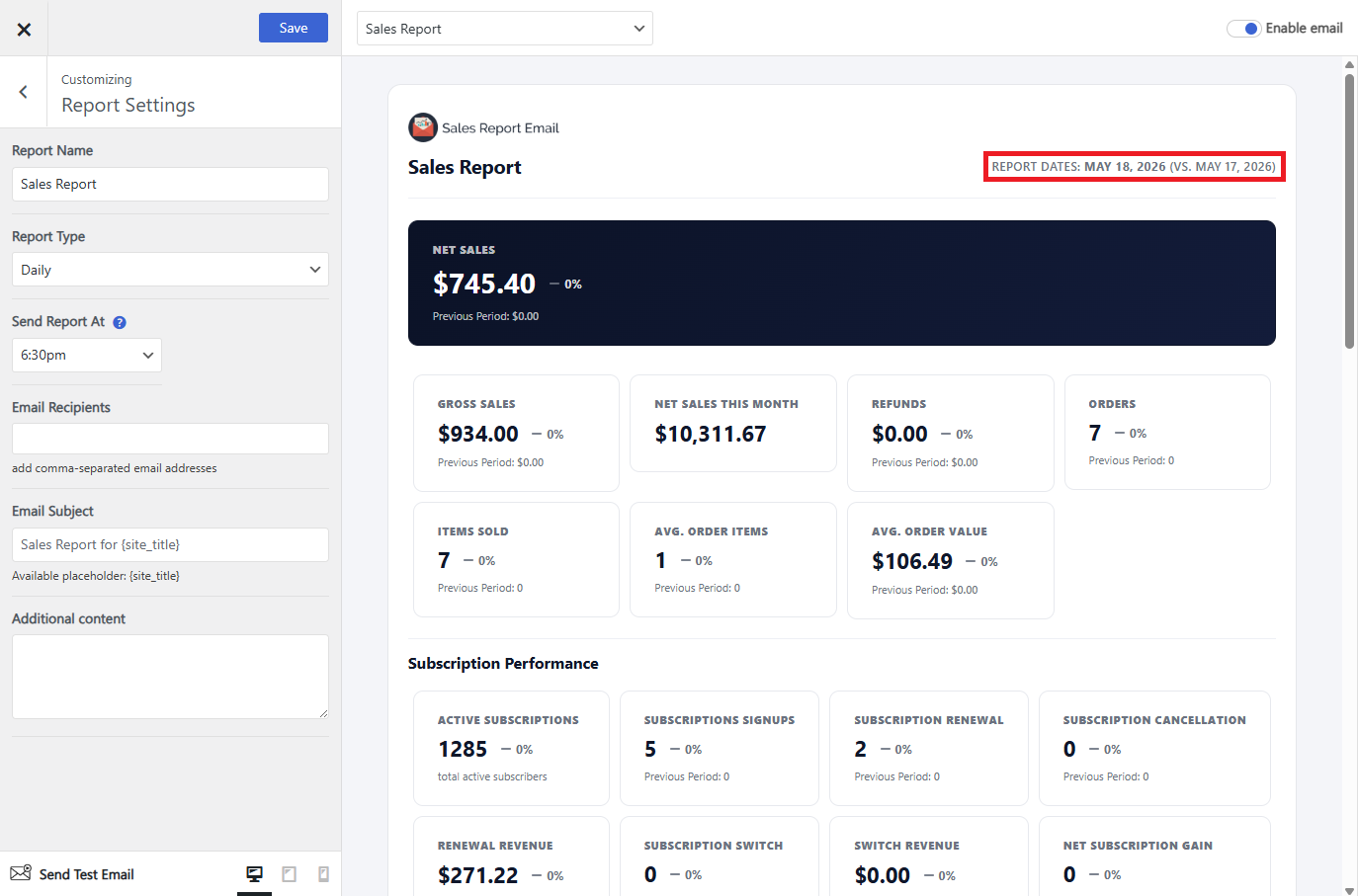
Daily
Choose the hour the email goes out. The report covers yesterday, 00:00 to 23:59.
Daily Flex Overnight
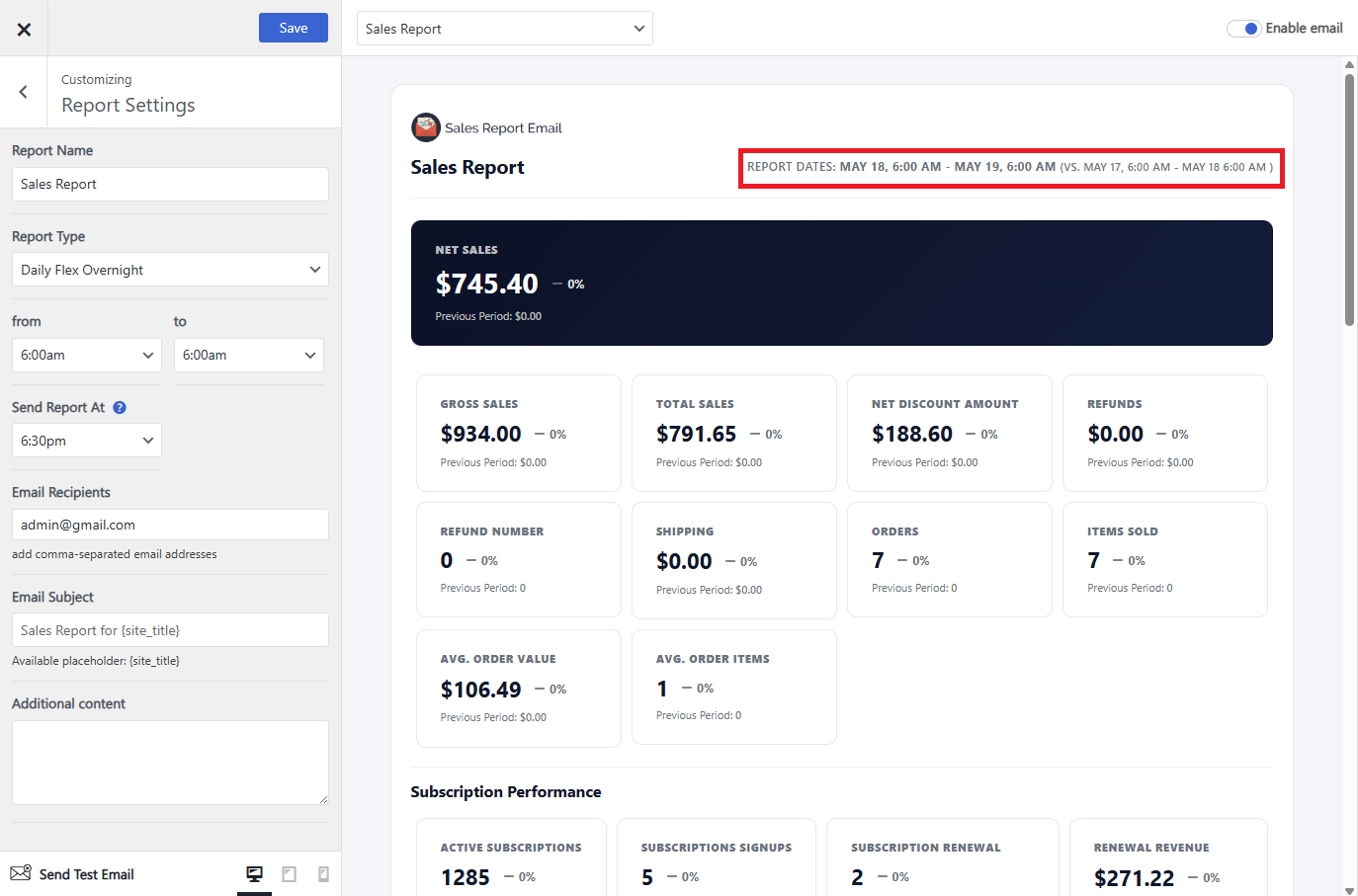
The report runs daily at the time you choose, and you also choose the hour range the data covers. That range can be part of a day, or it can span midnight.
This is the one to use if your business runs in shifts and you want a separate report per shift. For example, send at 8:00 AM covering 12:30 AM to 12:30 PM. If the start hour you pick is later in the clock than the end hour, the window is treated as overnight and starts on the previous day.
Weekly
Choose the day of the week and the hour. The report covers the last 7 days, ending at the end of yesterday — a rolling window, so a Monday send covers last Monday through Sunday.

Monthly
Choose the day of the month and the hour. The report covers the previous calendar month in full, from the 1st at 00:00 to the last day at 23:59.
Last 30 days
Choose the day and hour. The report covers the last 30 days, ending at the end of yesterday. This is a rolling 30-day window — it is not the same as a calendar month, and the period does not line up with the Monthly report.
Month to date
Covers the current month so far — the 1st at 00:00 through the end of yesterday. Use it when you want to watch the month build rather than wait for it to close.
Two things follow from the period being partial. On the 1st of the month no time has elapsed yet, so the report covers the whole previous month instead of an empty range. And early in the month the averages swing hard, because they are dividing by only a few days.
Manual
Not scheduled. You pick a date range and send the report when you want it.
Delivery and scheduling
Worth understanding before you rely on a schedule, because it explains most “my report didn’t arrive” cases.
Reports are sent by WP-Cron
WordPress doesn’t have a real clock running in the background. WP-Cron only checks for due tasks when someone loads a page on your site. On a busy store that’s constant and reports go out on time. On a quiet store, a report scheduled for 6:00 AM may not send until the first visitor arrives — which could be hours late, or not at all that day.
If your reports arrive late or skip days, switch to a real server cron. Disable WP-Cron in wp-config.php:
define( 'DISABLE_WP_CRON', true );and have your host call wp-cron.php on a schedule instead, typically every 5 or 15 minutes:
*/15 * * * * wget -q -O - https://your-store.com/wp-cron.php?doing_wp_cron >/dev/null 2>&1Most managed WooCommerce hosts either do this already or offer it as a setting.
Your license must be active
Scheduled reports only run on an activated license. If the license isn’t active, the schedule is created but nothing is sent, and the plugin shows a notice saying the cron is set while the license is not activated. See Getting Started for activation.
Emails are sent with wp_mail
Reports go out through WordPress’s own mail function, so they’re subject to whatever your site uses for email. If reports are generated but never arrive, that’s a deliverability problem, not a scheduling one — install an SMTP plugin and send through a real mail service. See Report Settings.