Email Reports for WooCommerce works with WPML, so you can translate the plugin’s strings into every language on your site. Tested with WPML 4.7.
Use WPML if you run a genuinely multilingual store and need the strings available in several languages at once. If you only need one language, or want to reword a few labels, Loco Translate is simpler.
Translating in bulk
WPML’s Translation Dashboard can translate many strings at once.
- Log in to your WordPress dashboard.
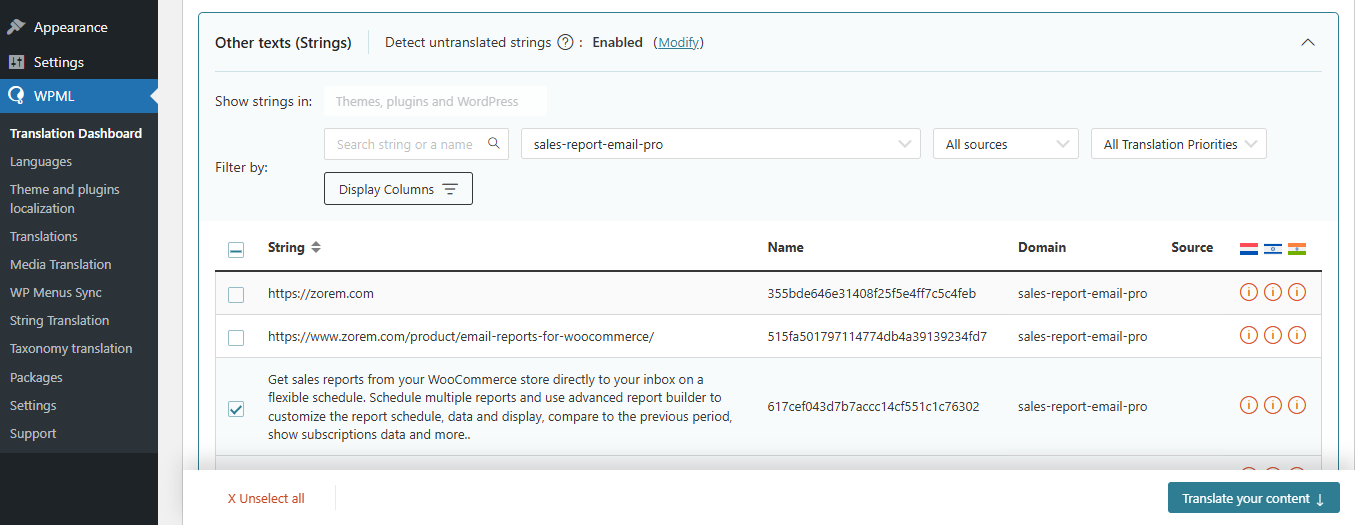
- Go to WPML > Translation Dashboard.
- Scroll down to the Other texts (Strings) section.
- In the Domains filter, choose
sales-report-email-pro— that’s the plugin’s text domain, and it groups all of its strings together. - Tick the strings you want and click Translate your content.
Choosing a translation method
At the next step, choose how the strings get translated:
- Translate automatically — WPML translates them for you, typically within a few minutes. For the best results make sure your translation engine is set to PTC (Private Translation Cloud), WPML’s own AI translation service. The dashboard shows the cost in euros and credits before you commit.
- Translate myself — the strings are queued for you. Go to WPML > Translations and enter each translation by hand.
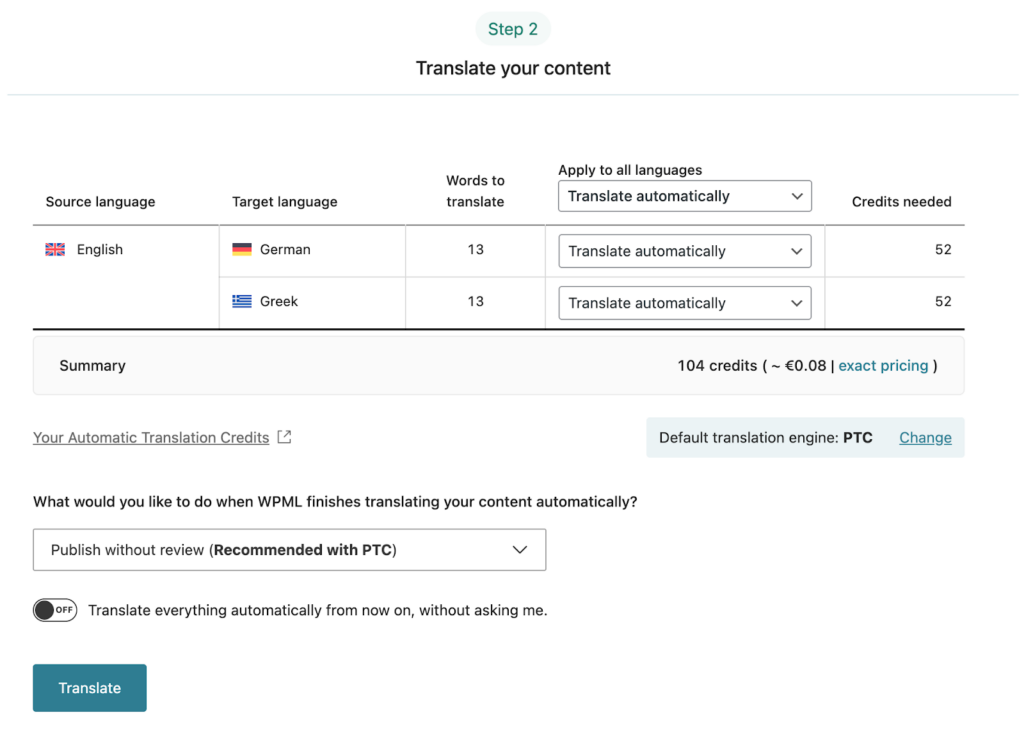
When you’re ready, click Translate.
Sync your translations
Once the strings are translated, make sure they’re live across the site. If you chose to publish without review, WPML applies them automatically. Otherwise go to WPML > Translations, review the translated content and publish it.