The plugin adds two new columns to the WooCommerce Analytics wc_order_stats table — one for the billing country code and one for the shipping country code. For new orders placed after the plugin is installed, these columns are populated automatically.
For existing orders placed before the plugin was installed, you must re-import the historical analytics data so that country information is backfilled for all past sales. Until you do, those orders will not appear in the report at all.
Re-Import WooCommerce Analytics Historical Data
Follow these steps in order. Step 4 is the one that matters — skipping it is why an import appears to succeed and change nothing.
- In your WordPress admin, navigate to Analytics → Settings.
- Scroll to the Import Historical Data section at the bottom of the page.
- Choose the date range to import. Leave it on All unless you only need recent orders — a narrower range imports faster but leaves older orders without country data.
- Uncheck “Skip previously imported customers and orders”. This is the critical step. Your orders have already been imported into Analytics once, so if this box stays ticked they are skipped and their country columns are never filled in.
- Click Start and follow the on-screen progress until the import completes.
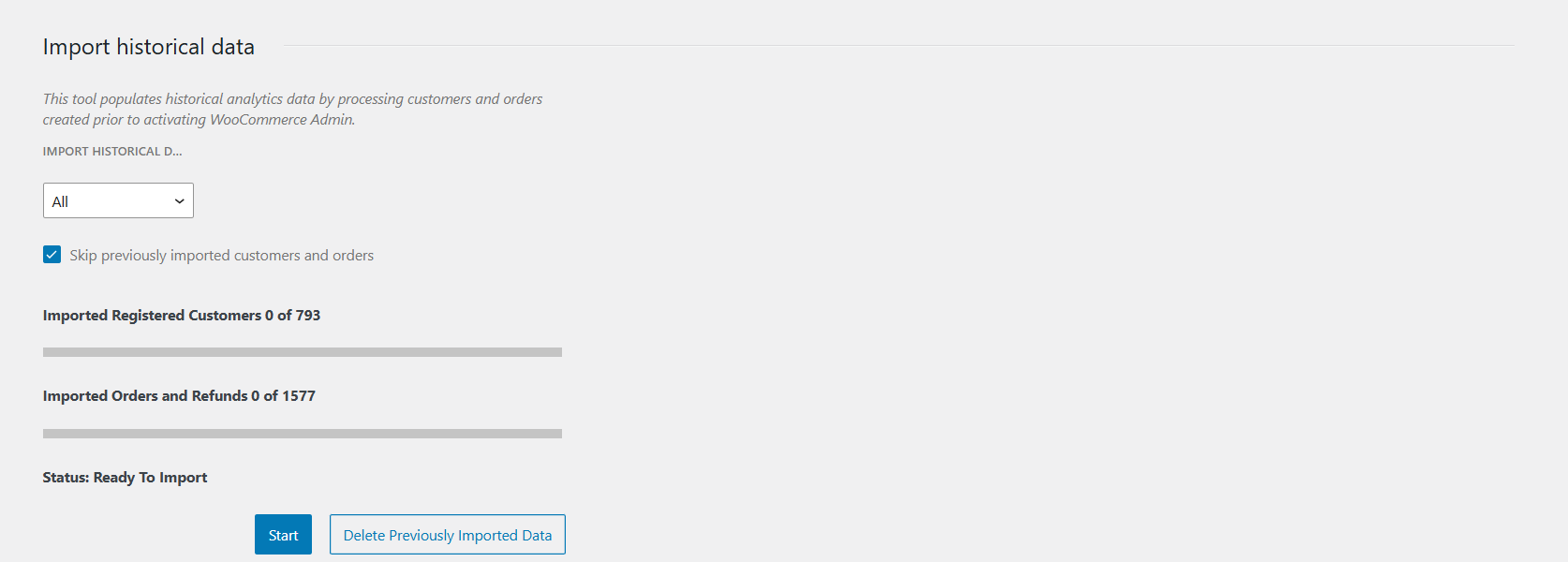
How long it takes
The import is queued through WooCommerce’s own background scheduler and processed in batches, so you can leave the page while it runs. As a rough guide, allow a few minutes per 10,000 orders — a store with 100,000 orders may take upwards of half an hour. Large stores are slower on shared hosting.
After the Import
Once the import is complete, navigate to Analytics → Sales by Country. The report will now include billing and shipping country data for all orders — both historical and new. You can use the country filter, date range, and billing/shipping toggle to analyse your full sales history by country.
wc_order_stats from scratch, which clears the country columns the plugin added. The same applies after restoring a database backup taken before the plugin was installed.Troubleshooting
| Problem | What to check |
|---|---|
| The import finished but the report is still empty | Almost certainly "Skip previously imported customers and orders" was left ticked. Run it again with the box unchecked. |
| The import stalls or the progress bar stops moving | The queue is handled by WooCommerce’s background scheduler. Check WooCommerce → Status → Scheduled Actions for pending or failed actions. A stalled queue usually restarts on the next site visit; if not, reload the Analytics Settings page. |
| The import times out on a large store | Import a narrower date range at a time, working backwards. Each run only needs to cover orders not yet processed. |
| Some orders still show no country after importing | Those orders genuinely have no country stored in the address field you are viewing. Try the other side of the billing/shipping toggle — virtual orders often have a billing country but no shipping one. |
| Country data disappeared after an update or migration | Re-run the import. A core Analytics rebuild or a restored backup clears the plugin’s columns. |
| Totals now differ from before the import | Expected — orders that were previously missing are now included. See How the Numbers Are Calculated. |