After installation and license activation, Sales By Country for WooCommerce is ready to use — the report itself needs no configuration. The plugin adds one settings screen, at WooCommerce → Settings → Sales by Country, used only to turn on the optional AI features and store your API key. If you are not using the AI features you can ignore it entirely.
Accessing the Report
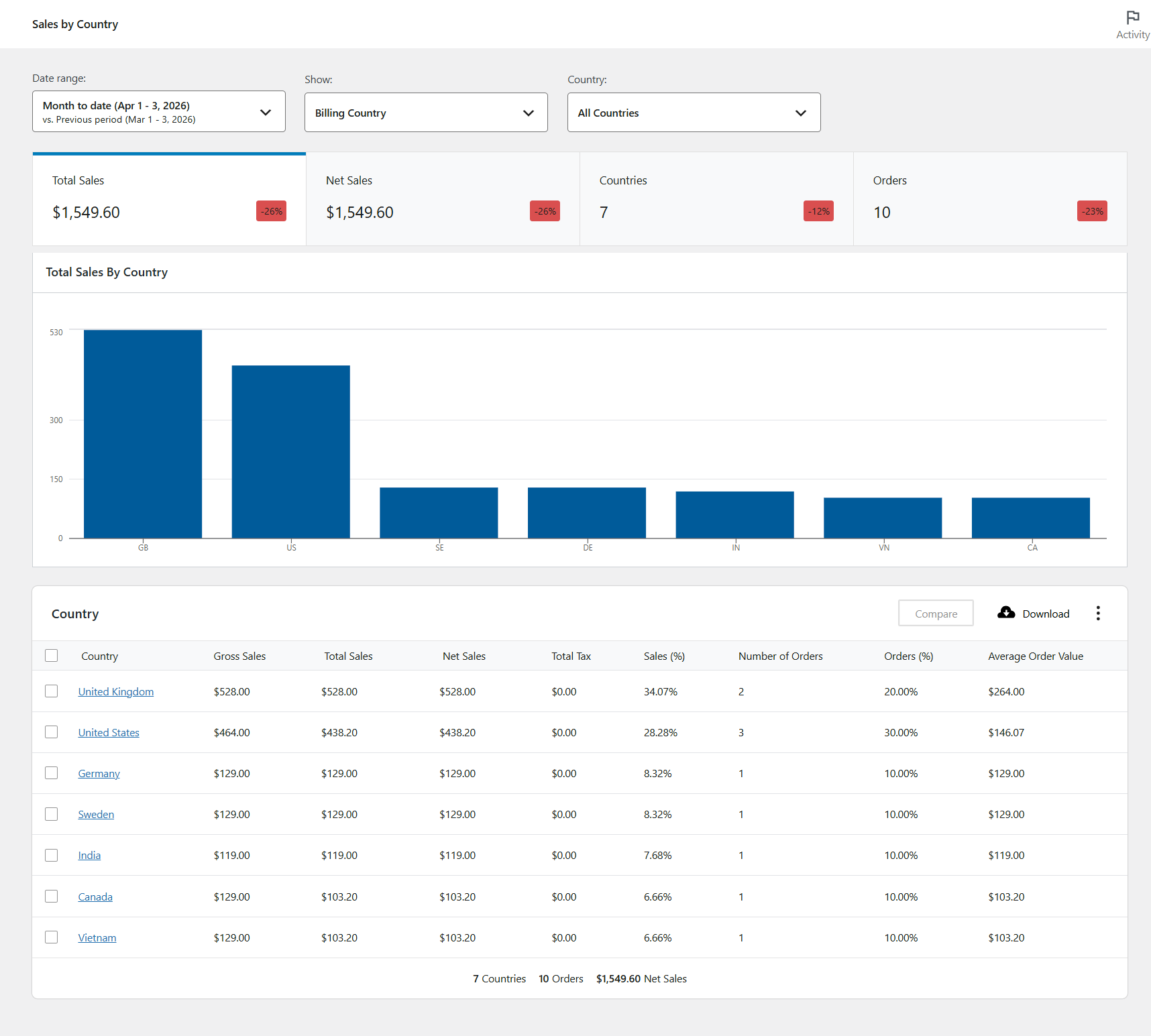
To view the Sales by Country report, go to Analytics → Sales by Country. The report is fully integrated into the WooCommerce Analytics interface and respects all of the standard WooCommerce Analytics date and filter controls.
The Settings Screen
Go to WooCommerce → Settings → Sales by Country. The screen holds a single section, AI Insights, with the following fields. Changing them requires the manage_woocommerce capability.
| Field | What it does | Default |
|---|---|---|
| Enable AI Insights | Turns on the written summary, recommendations and question box on the report. When enabled, aggregate country totals are sent to your chosen provider — never customer names, emails or order IDs. | Off |
| AI provider | Chooses between Claude (Anthropic), ChatGPT (OpenAI) and Gemini (Google). Each provider keeps its own key and model, so you can switch without re-entering anything. | Claude (Anthropic) |
| API key | Your own key for the selected provider, stored encrypted in your own database and never sent to Zorem. Once saved it is shown masked — leave the field blank to keep it, or paste a new key to replace it. Remove the saved key clears it. | Empty |
| Model | Any model your account can access. Leave blank to use the provider’s default. | Blank (provider default) |
| Connection | Test connection sends one very short prompt to confirm the key and model work. Costs a fraction of a cent. | — |
For the full walkthrough — where to get a key for each provider, which models are available, and what the test does — see Setting Up AI.
Report Options
These controls live on the report screen itself rather than in settings.
| Control | What it does |
|---|---|
| Date Range | Select any standard WooCommerce Analytics date range (Today, Last 7 days, Last month, Year to date, or a fully custom range). |
| Billing / Shipping Country | A single toggle with two states, switching the whole report between grouping by the customer’s billing country and their shipping country. |
| Country Filter | Filter the report to one or more specific countries. Filtering to a single country activates the Orders and Best-Selling Products tables. |
| Currency | Appears only when a supported multi-currency plugin is active. Shows orders paid in the selected currency, expressed in that currency. |
| Language | Appears only when WPML is active with more than one storefront language. |
| Download | Export any table as a CSV file by clicking the Download button in the top-right of each table. |
Each of these is covered in more detail in Reports & Filters, and the meaning of every column in How the Numbers Are Calculated.
Troubleshooting
| Problem | What to check |
|---|---|
| No Sales by Country tab under WooCommerce → Settings | The tab needs the manage_woocommerce capability, and the plugin must be on version 1.6.8 or later — the settings screen was added in 1.6.8. |
| The AI fields are visible but the panels never appear on the report | Enable AI Insights must be ticked and a valid API key saved for the selected provider. Use Test connection to confirm the key works. |
| The saved key stopped working after a site move | Keys are encrypted against your WordPress auth salt. If the salts in wp-config.php changed, the stored key can no longer be decrypted and must be entered again. |
| Settings will not save | Another plugin may be intercepting the WooCommerce settings save. Check for a PHP error, and confirm your user has manage_woocommerce. |