EDD PRO shows the estimated delivery date across six storefront locations. Enable or disable each location from WooCommerce → Estimated Delivery → Settings → Where to Display.
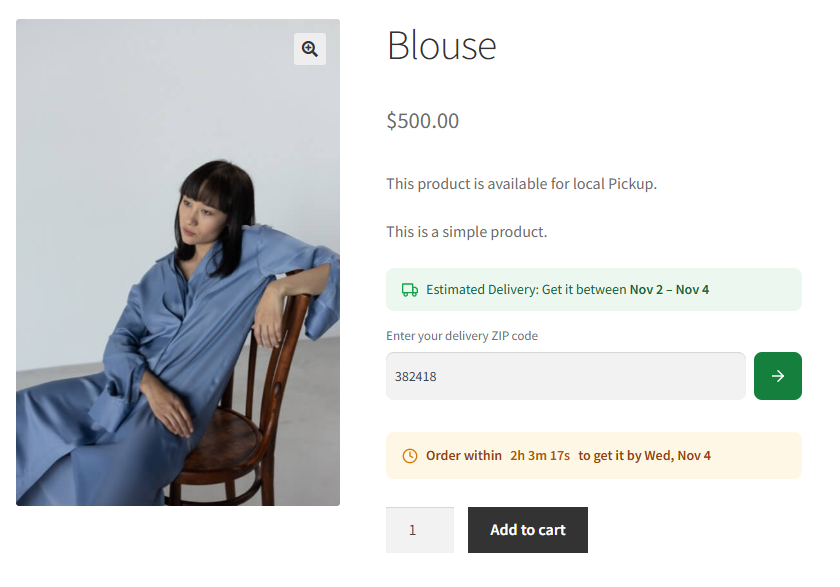
Product Page
The estimate appears on the single product page, typically below the Add to Cart button. It shows the delivery icon (truck or calendar) followed by the date or date range calculated from the product’s lead time rule.
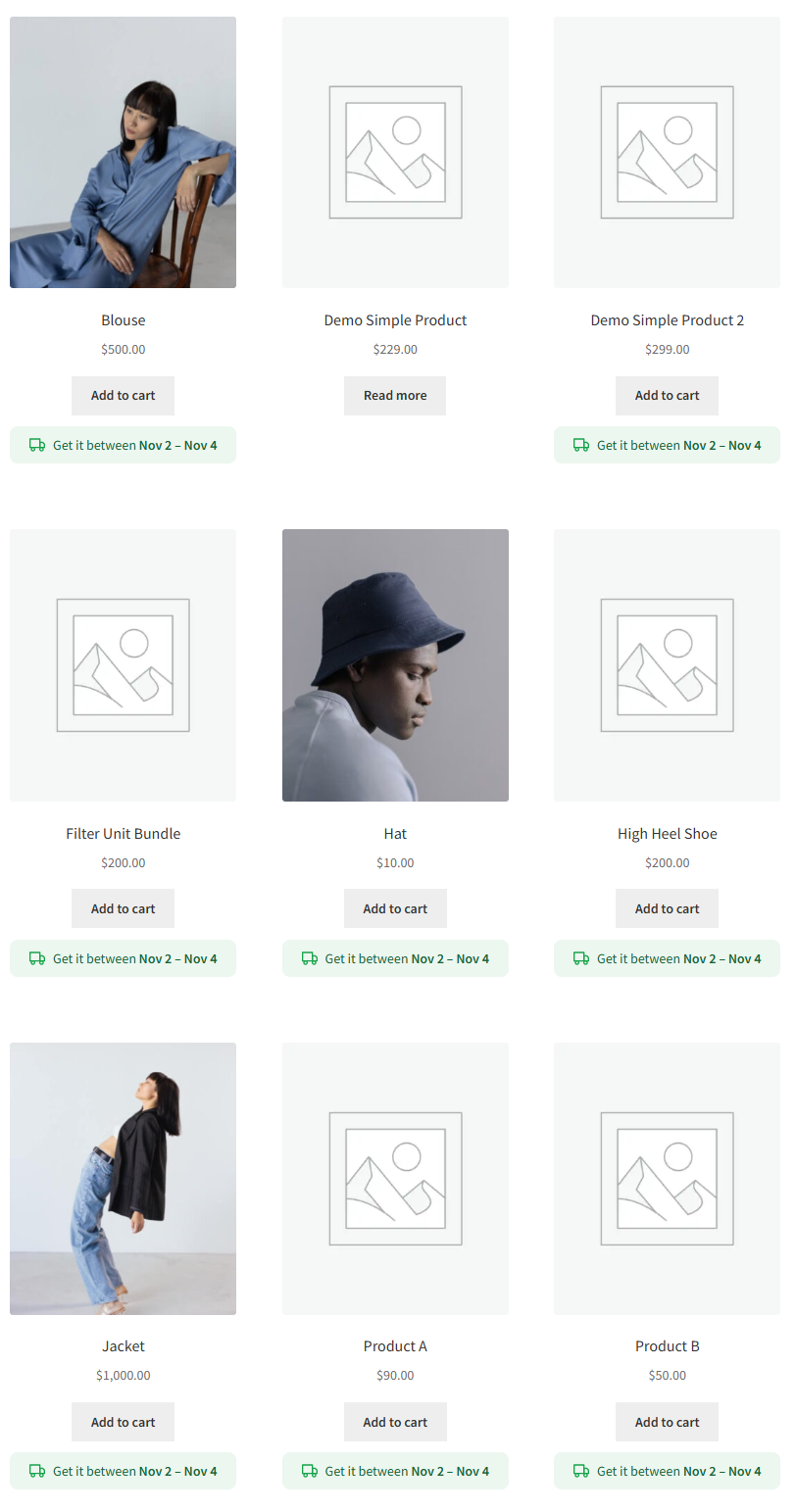
Shop / Archive Pages
When enabled, the estimate appears on product cards in the shop page, category pages, and tag archive pages. Useful for stores where delivery speed is a key purchasing factor.
Cart
The estimate appears in the cart totals area. With the PRO Show estimate under each shipping method option enabled, each available shipping method also shows its own delivery date on a separate line — so customers can compare dates before choosing a method.

Checkout
The estimate appears on the checkout page. With per-method estimates enabled, each shipping method in the checkout shipping selector shows its delivery date inline — helping customers make a final shipping choice with full visibility.
Order Received (Thank-You Page)
After placing an order, the estimate is shown on the order-received page. Use the Show on order statuses setting (PRO) to control which order statuses trigger the display — for example, show only for Processing and hide once the order is Completed.
Order Emails
The estimate is included in WooCommerce order notification emails (new order, processing, on-hold, etc.). The Show on order statuses setting also controls which email types include the estimate.
My Account — Orders Column (PRO)
Enable Show in My Account orders column from the Settings tab to add a delivery date column to the customer’s order history table in My Account. Customers can see the expected delivery date for each past order at a glance.
Tip: The delivery icon (truck or calendar) and estimate style (single date vs. date range) are global and apply consistently across all frontend locations. Change them in Settings → Estimate Style and Settings → Delivery Icon.