All PRO settings are found at:
WooCommerce → Delivery Slots → Settings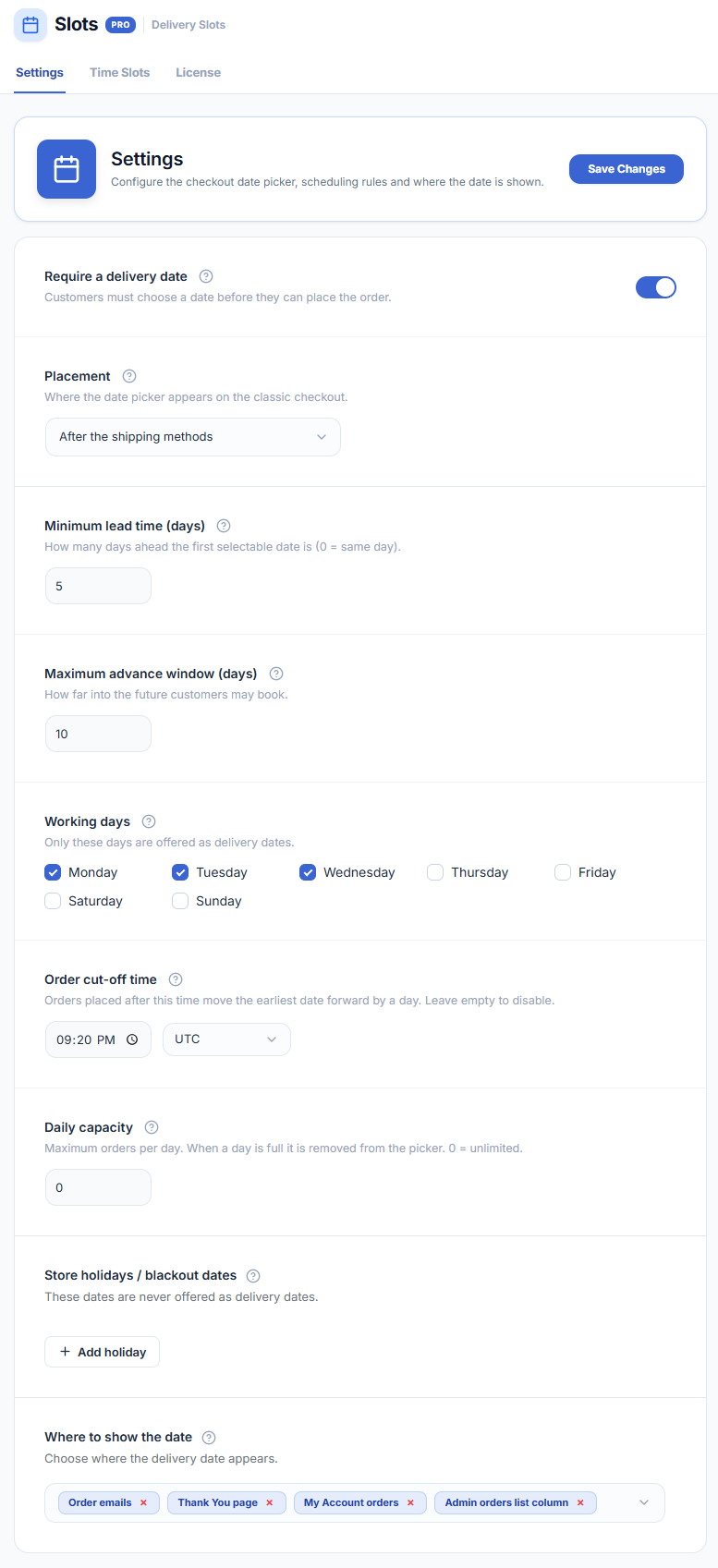
Settings Tab
Enable Delivery Date
Toggle this on to show the delivery date picker on the checkout page.
Date Picker Label
The label displayed above the calendar on checkout. Customise to match your store language. Default: Delivery Date.
Date Format
- DD/MM/YYYY — day-first format (common in Europe and India).
- MM/DD/YYYY — month-first format (common in the US).
- YYYY-MM-DD — ISO 8601 format.
Order Cut-off Time
Orders placed after this time are treated as if placed on the next working day. Enter a time in HH:MM format. Leave empty to disable.
Minimum Delivery Lead Time
The minimum number of working days before the first selectable delivery date. A value of 1 means the earliest available date is tomorrow (or the next working day).
Maximum Delivery Lead Time
How many days into the future the calendar stays open. Dates beyond this limit are disabled.
Working Days
Check every day your store ships orders. Unchecked days are automatically skipped in the calendar and when calculating lead times. Default: Monday – Friday.
Display Settings
Make Delivery Date Required
When enabled, customers must select a delivery date before they can complete checkout.
Show Delivery Date on Order Pages
Displays the chosen date on the order-received page, My Account → Orders, and admin order screens.
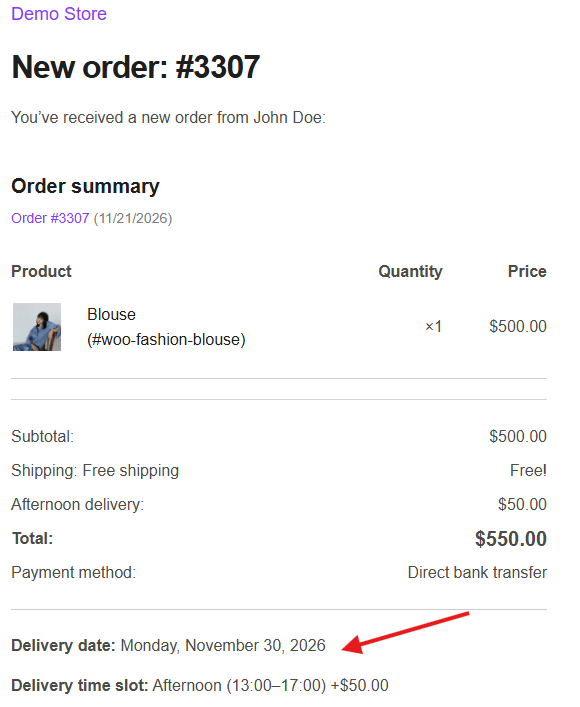
Show Delivery Date in Order Emails
Includes the chosen delivery date in WooCommerce order notification emails sent to both the customer and the store admin.
Save your settings after any change by clicking Save Changes at the bottom of the page.