Time slots let customers choose a specific delivery window on their selected date — for example, 9am–12pm or 1pm–5pm. Time slots are a PRO-only feature.
WooCommerce → Delivery Slots → Time Slots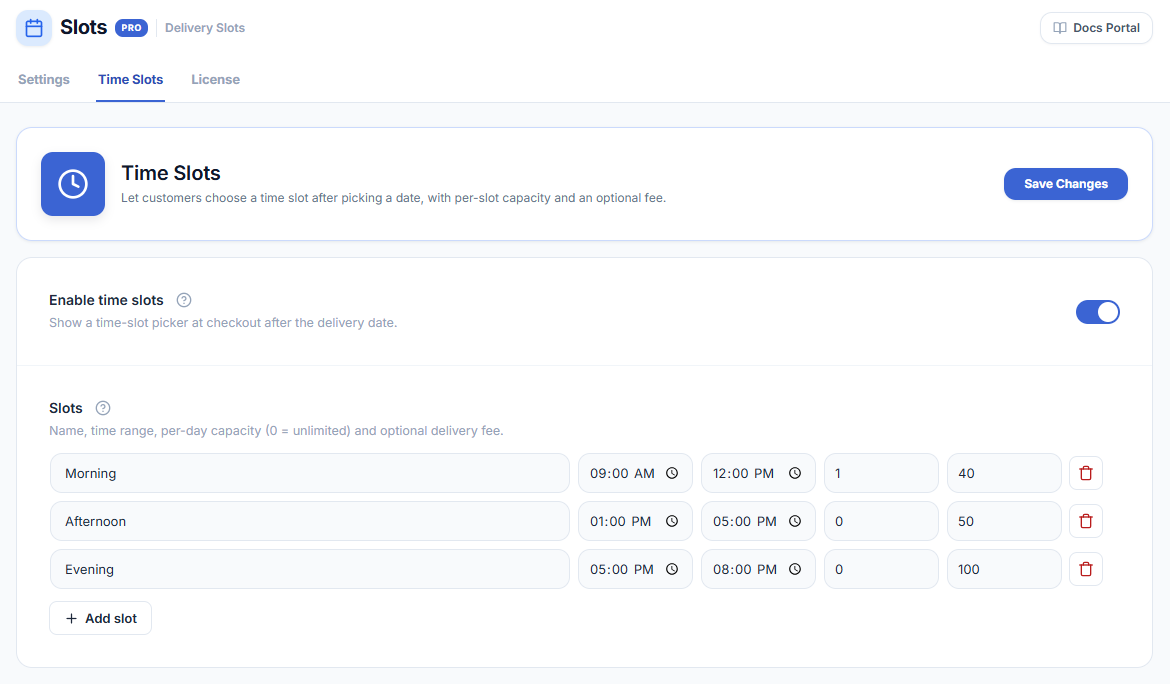
Enabling Time Slots
Toggle Enable Time Slots to show the time slot selector beneath the date picker on checkout. When disabled, only the date picker appears.
Adding a Time Slot
- Click + Add Slot.
- Enter a Start Time and End Time in HH:MM format.
- Optionally enter a Label (e.g. Morning, Afternoon). The label is shown to customers.
- Set the Days this slot is available — choose All Days or select specific days.
- Click Save Changes.
Time Slot Label
The label shown to the customer in the slot selector. If left empty, the start and end times are displayed (e.g. 09:00 – 12:00). Use a friendly label like Morning delivery or Evening delivery for a better customer experience.
Per-Day Slot Availability
Each slot can be restricted to specific days of the week. For example, offer a Saturday evening slot only on Saturdays:
- Create the slot with the desired start and end time.
- Under Days, uncheck All Days and check only Saturday.
- Save Changes.
Slots appear in the order they are listed. Drag and drop rows to reorder them. The order set here is the order customers see on checkout.