WooCommerce → Estimated DeliverySettings Tab
Control the estimate style, display text, and where the estimate appears across your store.
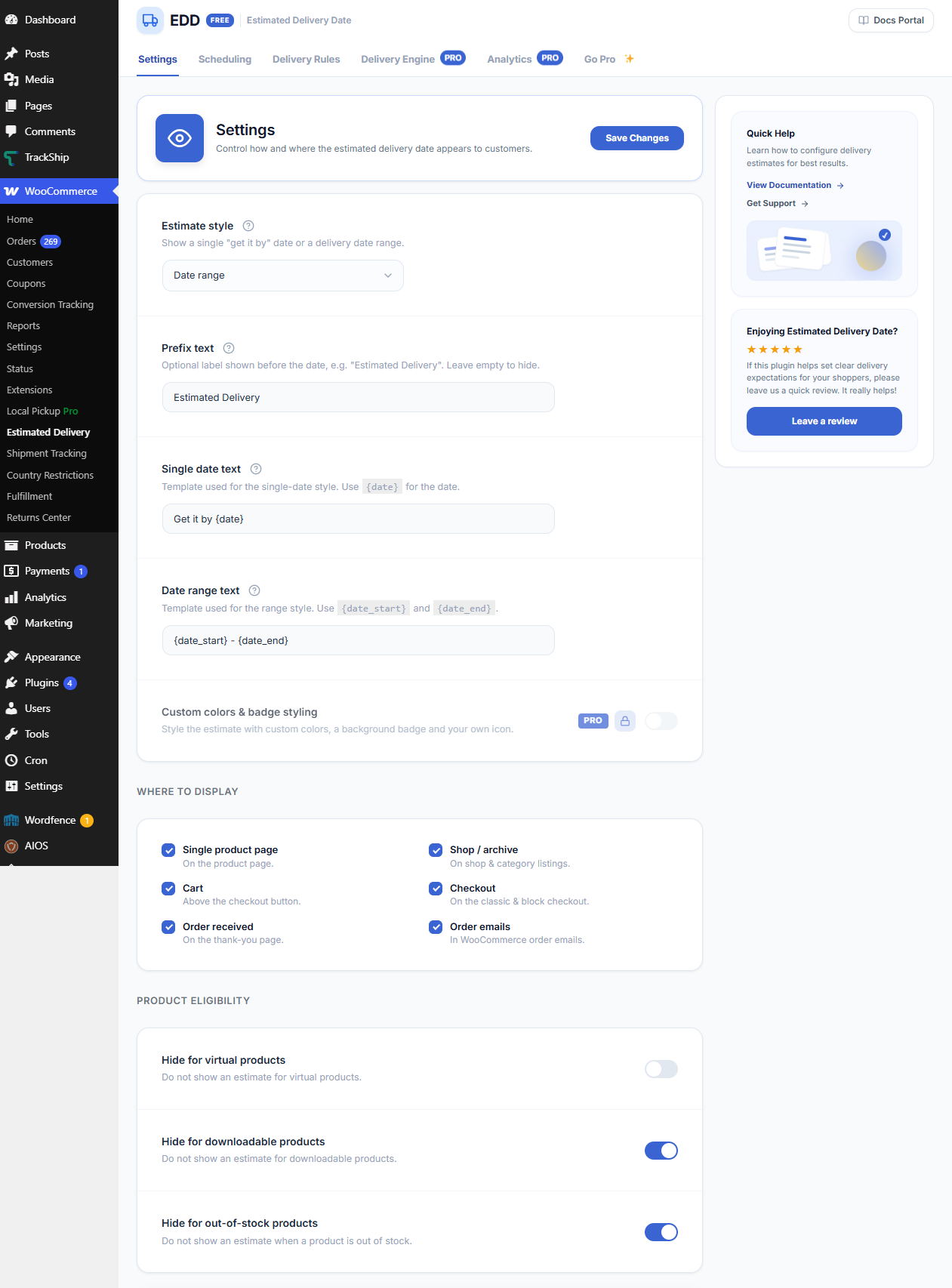
Estimate Style
Choose how the delivery date is shown to customers:
- Single date — shows one specific date, e.g. “Get it by Monday, Nov 4”.
- Date range — shows a delivery window, e.g. “Nov 4 – Nov 7”.
Prefix Text
An optional label shown before the date. Default is Estimated Delivery. Leave empty to hide the label entirely.
Single Date Text
The template used when the estimate style is set to single date. Use the {date} placeholder for the calculated date.
Default: Get it by {date}
Date Range Text
The template used when the estimate style is set to date range. Use {date_start} and {date_end} placeholders.
Default: {date_start} - {date_end}
Where to Display
Select all locations where the delivery estimate should appear:
- Single product page — on the product page.
- Shop / archive — on shop and category listing pages.
- Cart — above the checkout button.
- Checkout — on the classic and block checkout.
- Order received — on the thank-you page.
- Order emails — in WooCommerce order emails.
Product Eligibility
Control which product types should not show a delivery estimate:
- Hide for virtual products — do not show an estimate for virtual products.
- Hide for downloadable products — do not show an estimate for downloadable products.
- Hide for out-of-stock products — do not show an estimate when a product is out of stock.
Scheduling Tab
Configure your store’s working schedule to accurately calculate the first possible dispatch date.
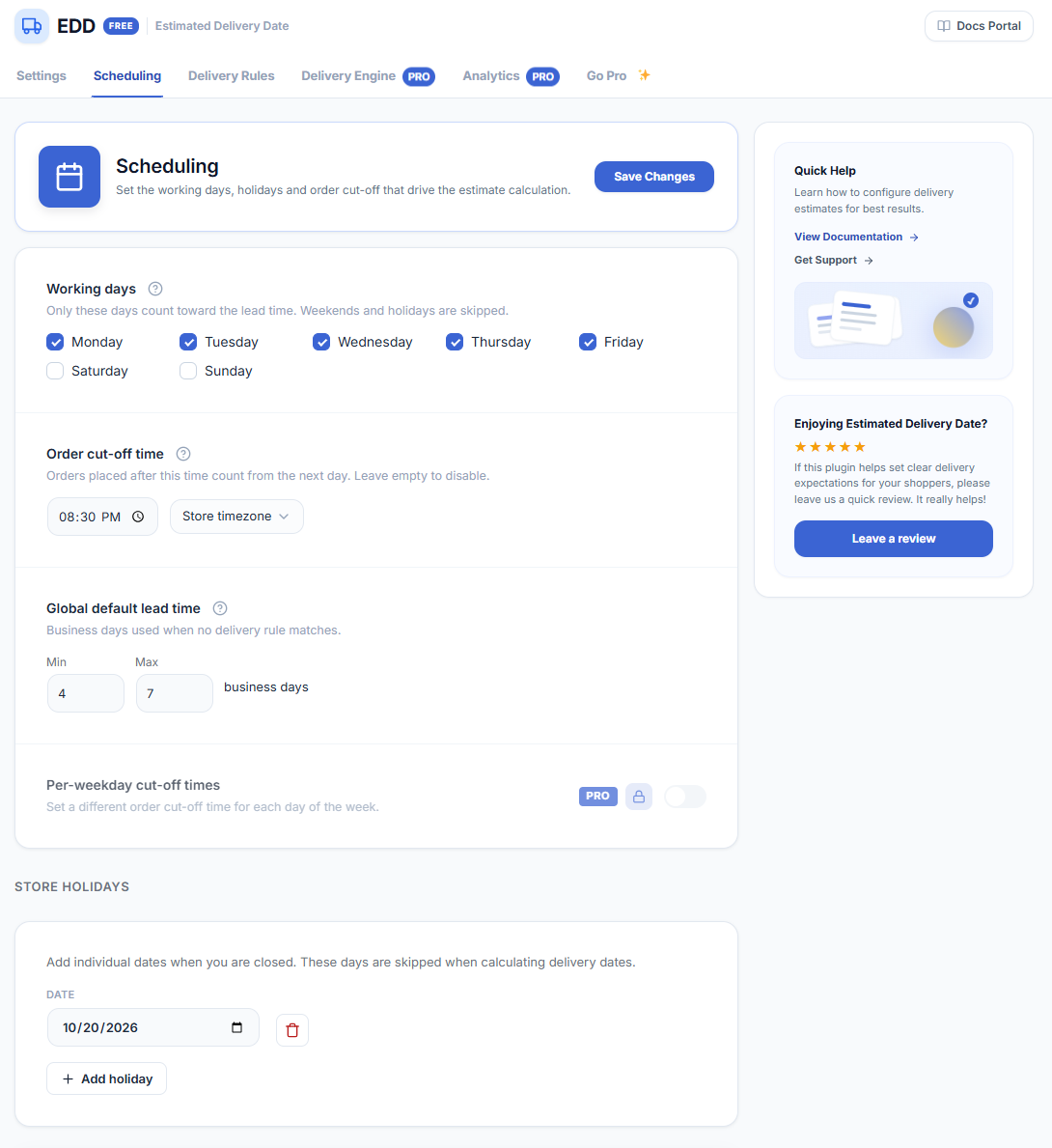
Working Days
Select which days of the week your store processes and dispatches orders. Only checked days count toward the lead time — weekends and unchecked days are skipped automatically.
Order Cut-off Time
Orders placed before this time are processed the same day. Orders placed after the cut-off are counted from the next working day. You can also choose whether to apply the store’s timezone or the customer’s local timezone.
Global Default Lead Time
The default minimum and maximum lead time in business days, used when no Delivery Rule matches the order. Enter a Min and Max value (e.g. Min 4, Max 7).
Store Holidays
Add specific dates when your store does not dispatch orders. These dates are skipped when calculating the delivery window. Click + Add holiday to add a date, and the trash icon to remove one.
Delivery Rules Tab
Create rules to override the global default lead time for specific shipping methods, shipping classes, or shipping zones.

How Rules Work
When a product matches more than one rule, the most specific rule wins: Shipping Method first, then Shipping Class, then Shipping Zone. The global default lead time is used when no rule matches.
Adding a Rule
- Click + Add rule.
- Select the Rule Type: Shipping Method, Shipping Class, or Shipping Zone.
- In the Applies To dropdown, select the specific method, class, or zone this rule applies to.
- Enter the Min and Max lead time in business days for this rule.
- Click Save Changes.