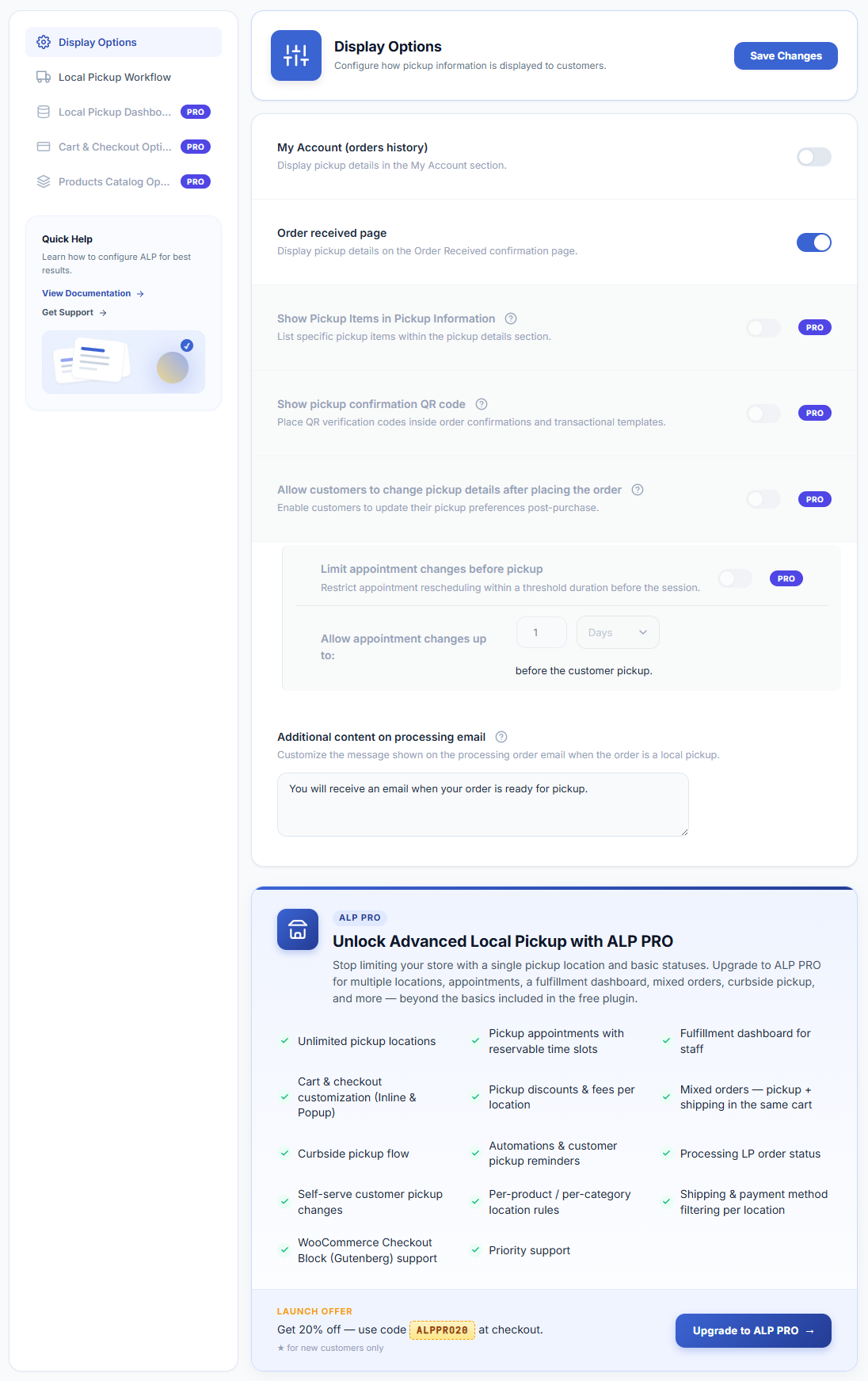
Display options control where your pickup location details are shown to customers after they place an order. You can choose one or all of the available locations.
- Open the Settings tab — Navigate to WooCommerce → Local Pickup and click the Settings tab.
- Configure display locations — You will see checkboxes for the following display locations. Tick all that apply to your setup:
Processing Order Email
Displays pickup instructions in the standard WooCommerce “Order Processing” email that is sent when the order is first received. Recommended: enable this so customers have pickup details immediately after ordering.
Order Received Page
Shows pickup information on the thank-you / order confirmation page immediately after checkout. Recommended: always enable this.
My Account — Orders History
Displays pickup details on the order details page inside the customer’s WooCommerce My Account area. Recommended: enable this so customers can look up their pickup info at any time.
Additional Content on Processing Email
Allows you to type a custom message that will appear in the Processing email body for local pickup orders only. Use this for anything not covered by the location instructions, such as a personal welcome message or seasonal hours notice.
- Save your changes — Click Save Changes.