Here is what your customers see during the email verification process — from the popup that appears after submitting the registration form, to the verification email they receive. See How It Works for the full step-by-step flow.
Verification Popup
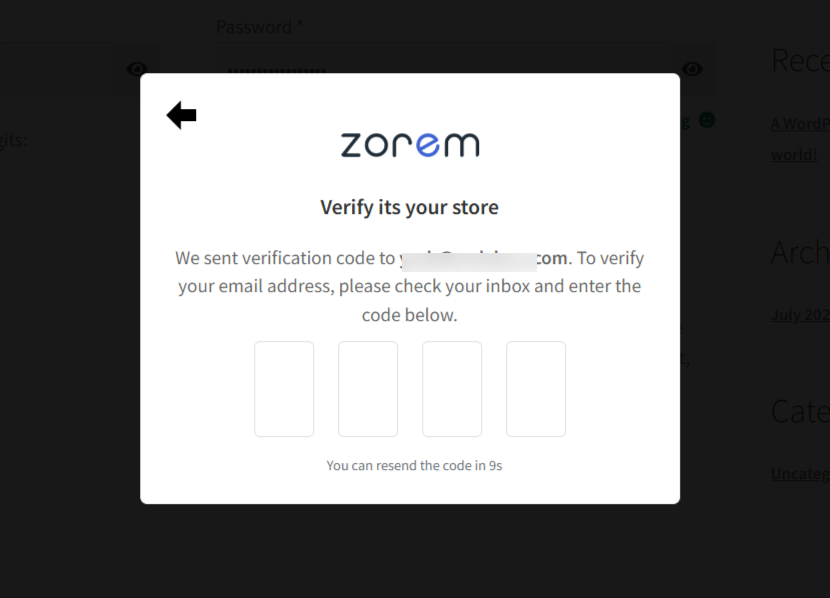
After a customer submits the registration form, a verification popup is immediately displayed — before the account is created. The popup shows a verification message and a 4-digit code input field, plus a resend countdown. The customer must enter the OTP code from their email to complete registration and create their account. If the email was not received, they can request a resend directly from the popup once the countdown finishes.
Verification Email
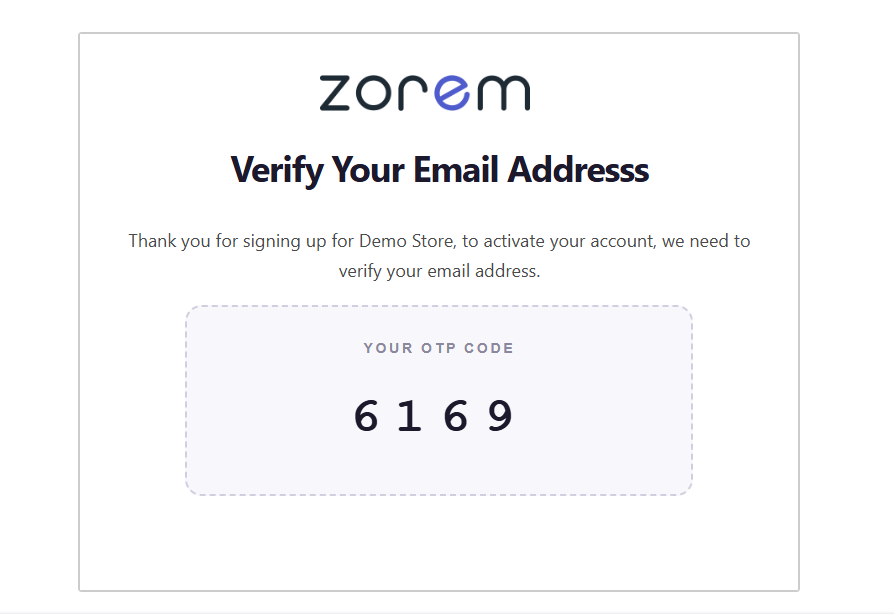
As soon as the customer submits the registration form, the plugin automatically sends a verification email to the address they provided. The email contains a 4-digit numeric OTP code the customer must enter into the popup to complete their registration and create their account.
Example verification email:
If Something Goes Wrong
- Wrong code entered — the popup shows an error and lets the customer try again.
- Email never arrives — the customer should check spam/junk first. If verification emails aren’t arriving for anyone, check your site’s outgoing mail is actually being delivered; WordPress’s default mail relies on the server’s mail function, which many hosts throttle or block, so an SMTP plugin is recommended.
- Customer abandons the popup — since the account isn’t created until the code is confirmed, closing the popup without verifying simply leaves no account behind; the customer can just register again.
Related
- How It Works — the full registration verification flow.
- Customize — personalize the popup and email text and appearance.